
How to Organize Contacts and Chats in WhatsApp Business
Learn how to organize contacts and chats in WhatsApp Business using labels, pins, and archives. Keep your inbox clean and improve customer response times.
- WhatsApp Business
- Contact Organization
- Inbox Management
- Sales Funnel
- Customer Service
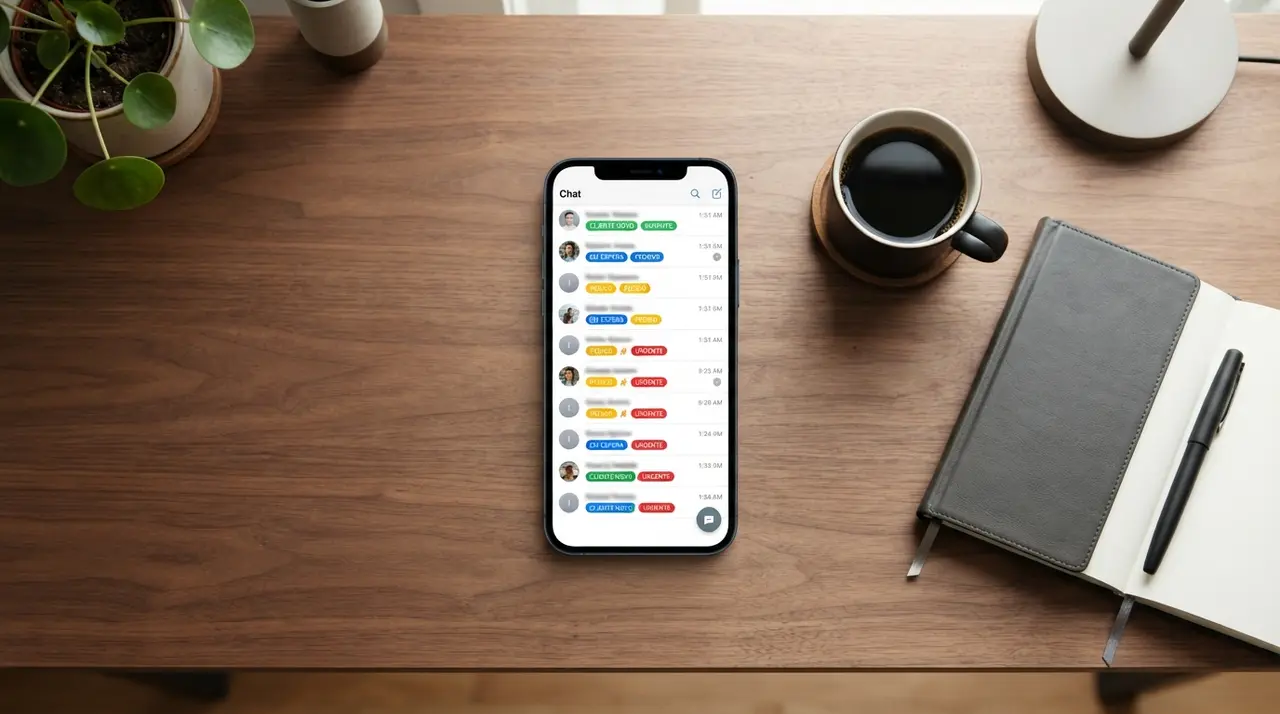
Organizing contacts and conversations in WhatsApp Business requires using native features like labels, pinned chats, and contextual naming to separate new leads from resolved support tickets. By structuring your inbox systematically, you prevent lost messages, speed up response times, and ensure every customer receives accurate attention. If you are struggling with a chaotic inbox, mastering these basic tools is the first step toward scalable customer service. Many business owners start by asking whatsapp business como funciona to understand these exact organizational capabilities before expanding their operations.
Understanding How WhatsApp Business Works for Organization
WhatsApp Business provides native tools like labels and pins to sort customer conversations efficiently. Unlike the standard app, the business version is designed to treat your chat list like a lightweight customer relationship manager. You can group customers by their status, mark messages for follow-up, and filter your view to see only unread or labeled conversations.
To get the most out of it, you need a strict daily routine. Never leave a resolved chat in your main feed. By archiving finished conversations and labeling active ones, your team knows exactly who needs a reply next. This clear separation prevents the anxiety of staring at a massive, unorganized list of numbers.
Using Labels to Categorize Your Sales Funnel
Labels allow you to visually tag chats based on their current stage in the buying process. You can create up to 20 custom labels with different colors in the app. When a new lead messages your business, assign a label immediately to keep track of their status and prevent them from falling through the cracks.
Here is a standard label structure for a service-based business:
- New Lead: For first-time inquiries and unqualified prospects.
- Pending Payment: For customers who received a quote but have not paid yet.
- In Progress: For active orders or services currently being delivered.
- Completed: For finished transactions ready for a future feedback request.
Filtering by these labels turns your WhatsApp interface into a highly visual sales pipeline, allowing you to send targeted broadcast messages to specific groups.
Naming Contacts with Contextual Clues
Adding contextual tags to contact names ensures you instantly recognize a customer's needs before opening the chat. Relying solely on a first name is a recipe for disaster when dealing with hundreds of customers on a daily basis. Instead of saving a number simply as "John", use a structured and repeatable format.
A great naming convention is [Name] - [Product/Interest] - [Company/City]. For example, saving a contact as "John - Enterprise Plan - TechCorp" gives you instant context the moment they send a message. This practice also optimizes the search bar, allowing you to find all clients interested in a specific product just by typing that keyword into your contact list.
Archiving and Pinning: Keeping the Inbox Clean
Pinning prioritizes urgent chats, while archiving hides resolved conversations to maintain an inbox zero environment. You can pin up to three critical conversations, ensuring they never get buried under new incoming messages. Once a customer's issue is resolved or a sale is closed, archive the chat immediately.
Archiving does not delete the conversation; it simply moves it out of your main view until the customer messages you again. This simple habit drastically reduces visual clutter and cognitive load for your sales team, allowing them to focus entirely on pending deals.
| Action | Best Used For | Visibility Impact |
|---|---|---|
| Pinning | Urgent VIP clients or ongoing critical issues. | Keeps chat locked at the very top of the list. |
| Archiving | Completed sales, resolved support tickets. | Hides chat from main feed until a new message arrives. |
| Labeling | Categorizing leads by sales funnel stage. | Adds a visual color tag; allows filtering by category. |
| Muting | Spammy groups or non-urgent broadcast lists. | Stops push notifications without hiding the chat. |
Enhancing Organization with Quick Replies
Pairing labeled chats with quick replies allows your team to answer repetitive questions in seconds while maintaining a highly organized workflow. Quick replies let you save and reuse frequently sent messages, such as business hours, pricing tables, or payment instructions. When a chat is labeled as "Pending Payment", you can instantly type a keyboard shortcut to send your bank details.
To create a quick reply, simply navigate to the business tools menu and set a keyboard shortcut starting with a forward slash. Consistency is key here. Ensure all your sales representatives use the same standardized responses so that the customer experience remains uniform, regardless of who is managing the inbox.
How to Create a WhatsApp Link to Route Leads Automatically
Generating a custom WhatsApp link directs customers to your chat with a pre-filled message, streamlining initial contact. When entrepreneurs research como criar link whatsapp, they are looking for ways to bridge the gap between their Instagram ads and their WhatsApp inbox efficiently.
You can use the native short link feature in the Business app to generate this URL. Add a default message like "Hi, I want to know more about the Premium Plan." When the message arrives, you instantly know what the customer wants, allowing you to apply the correct label without asking repetitive qualifying questions.
Running Two WhatsApp Accounts on the Same Phone
Using dual apps or business profiles lets you separate personal and professional chats on one device. Many business owners search for dois whatsapp no mesmo celular to achieve a better work-life balance without having to purchase and carry two physical smartphones.
Most modern Android devices offer a "Dual Messenger" or "App Clone" feature natively in their settings. On iOS, the easiest method is to install both the standard WhatsApp (for personal use) and WhatsApp Business (for work) registered to two different SIM cards or an eSIM.

Scaling Your Organization with Automation
Transitioning from manual organization to AI-driven automation ensures that no lead is lost when conversation volumes exceed human capacity. Even with perfect labels and naming conventions, a human team can only manage a limited number of chats simultaneously before response times drop and errors occur.
Take a recent mini-case from a retail store client using IAChatbot. They were drowning in manual labeling and struggling to answer basic FAQs during peak hours. By implementing IAChatbot's platform, the system automatically tagged incoming leads, answered pricing questions, and only transferred complex cases to human agents. This intelligent setup reduced their manual inbox management time by 70%.
If you want to understand the full scope of these results, explore the benefits of using AI in customer support to see how smart tools outperform manual typing. You can also view real use cases of AI in customer service and sales to inspire your own operational upgrades.
Frequently asked questions
How do I organize my WhatsApp Business contacts efficiently?
You can organize your contacts efficiently by using color-coded labels, standardizing contact names with contextual tags, and utilizing the archive feature. Categorize leads based on their sales stage, such as "New Lead" or "Pending Payment". Always archive resolved chats to keep your main inbox clean and focused on active conversations.
Can I use labels on standard WhatsApp?
No, the labeling feature is exclusive to WhatsApp Business. Standard WhatsApp only allows you to pin, archive, or mute chats. If you need to categorize customers or create a visual sales funnel, you must upgrade your account to the Business version.
What happens when I archive a chat in WhatsApp Business?
Archiving a chat removes it from your main conversation list and places it in an Archive folder, helping you maintain a clutter-free inbox. The chat is not deleted, and if the customer sends a new message, the conversation will automatically reappear in your main feed.
How many chats can I pin in WhatsApp Business?
WhatsApp Business allows you to pin up to three individual or group chats at the top of your inbox. This feature is best used for highly urgent conversations or VIP clients that require your immediate and constant attention.