
WhatsApp Business Quick Replies: How to Configure
Learn how to configure WhatsApp Business quick replies to speed up customer service. Discover examples, best practices, and profile optimization tips.
- WhatsApp Business
- Customer Service
- Business Automation
- Sales Strategy
- Quick Replies
Time is Money in Customer Service
In today's fast-paced digital market, your customers expect instant answers. If your sales or support team is manually typing the same greeting, pricing information, or business hours dozens of times a day, your company is losing valuable time and money.
This repetitive work leads to slower response times, inconsistent brand messaging, and ultimately, lost sales. The solution? WhatsApp Business quick replies.
By leveraging this built-in feature, you can create keyboard shortcuts for your most frequently asked questions. In this comprehensive guide, we will show you exactly how to configure them, share the best templates for small and medium-sized enterprises (SMEs), and explain how to scale your operations when manual typing is no longer enough.
The Foundation: Understanding the App
Many entrepreneurs start their journey by talking to clients on their personal phone numbers. However, as the business grows, the difference between WhatsApp Business and personal accounts becomes glaringly obvious.
The personal version of the app is designed for chatting with friends and family. It lacks organizational tools. The Business version, on the other hand, is built specifically for commerce. It includes features like chat labels, automated away messages, product catalogs, and, most importantly, quick replies.
Upgrading to the Business version is free and is the very first step toward professionalizing your customer communication.
Optimizing Your Digital Storefront
Before you even begin drafting canned responses, you need to ensure your foundation is solid. A complete and professional WhatsApp Business profile acts as your digital storefront.
When a potential client clicks on your contact info, they should immediately see your logo, business description, operating hours, email, and website. A well-optimized profile often answers customer questions before they even send a message, naturally reducing your support volume.
What Are WhatsApp Quick Replies?
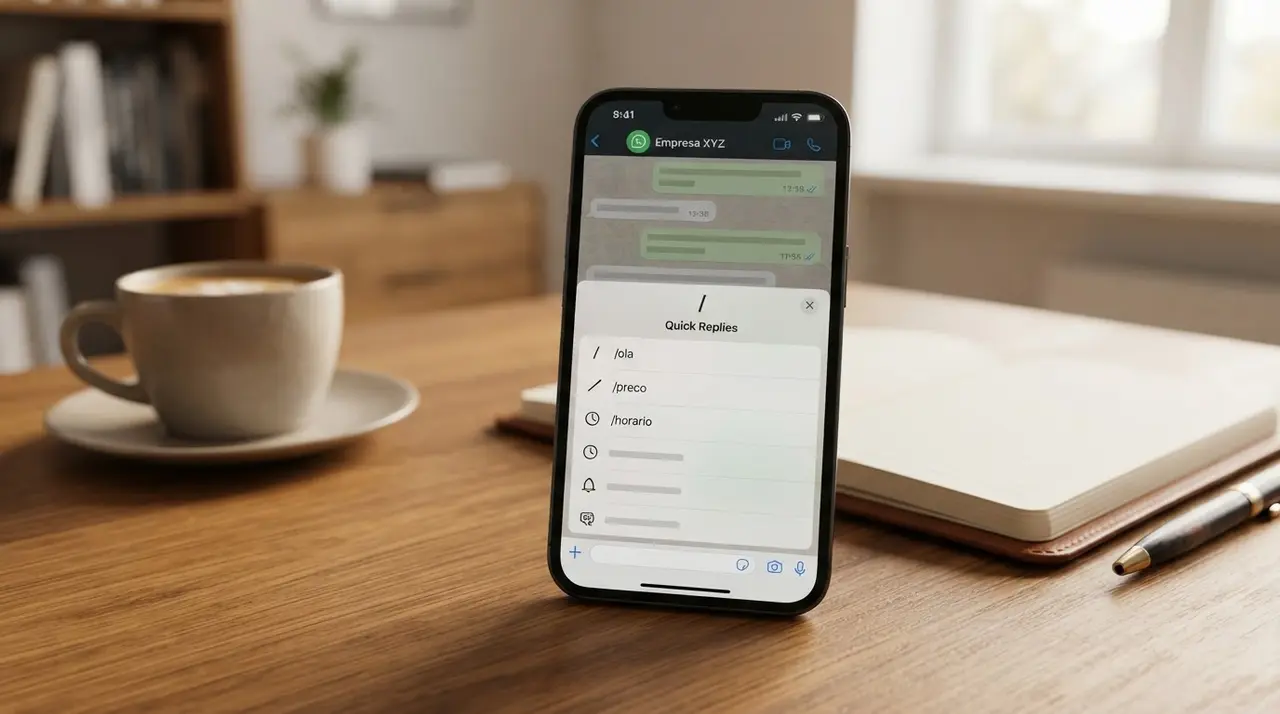
Quick replies are pre-written text messages, media, or automated greetings that you can save and easily insert into a chat using a simple keyboard shortcut. By typing a forward slash (/) followed by a keyword, you can instantly populate the text box with a full, standardized message.
For example, instead of typing "Hello! Welcome to our store. How can I help you today?" every single time, you can simply type /hello, tap the shortcut, and hit send. It takes one second instead of fifteen.
- Speed: Drastically reduces the time it takes to reply to common inquiries.
- Consistency: Ensures every team member uses the same tone of voice and provides accurate information.
- Accuracy: Eliminates typos and grammatical errors in crucial messages like payment details or addresses.
How to Configure Quick Replies (Step-by-Step)
Setting up your shortcuts is incredibly straightforward. The process varies slightly depending on whether you are using an Android device or an iPhone, but the core logic remains the same.
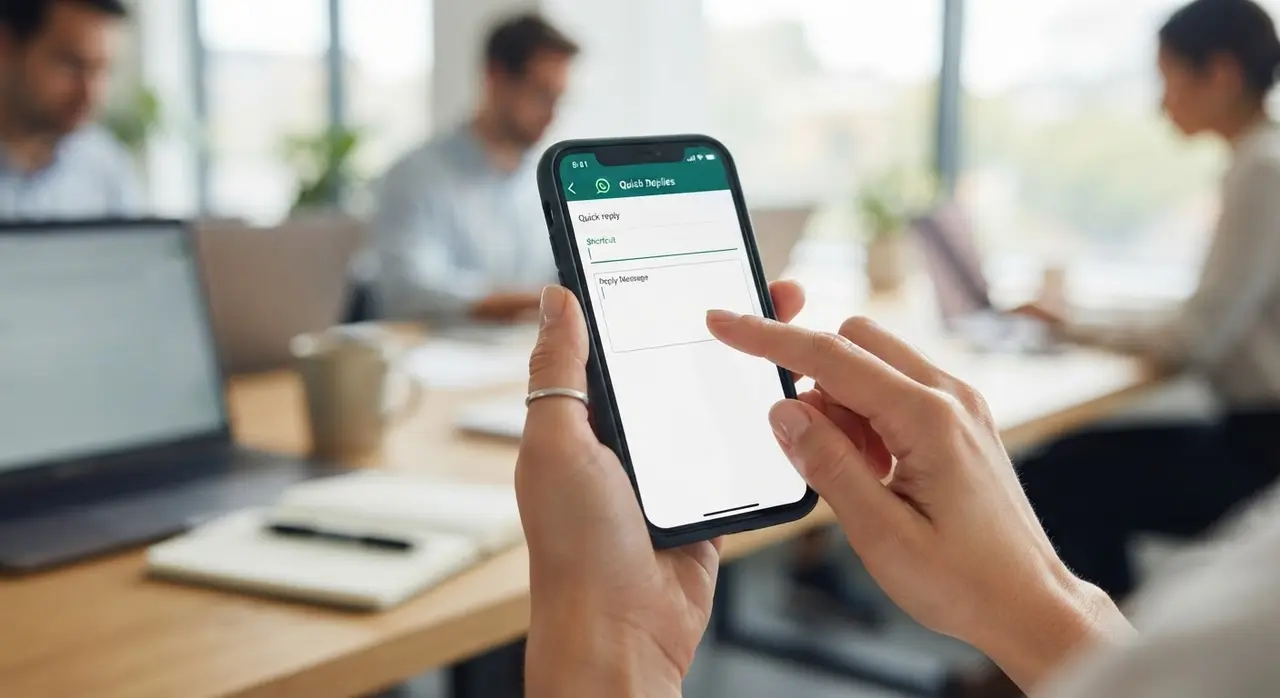
For Android Users
- Open the WhatsApp Business app and tap the three vertical dots (More options) in the top right corner.
- Tap on Business tools.
- Scroll down and select Quick replies.
- Tap the green Add (+) button at the bottom of the screen.
- In the Shortcut field, type the keyword you want to use (e.g., "thanks").
- In the Reply message field, type the full message you want to send. You can also attach photos or videos.
- Tap Save.
For iPhone (iOS) Users
- Open the WhatsApp Business app and tap on Settings in the bottom right corner.
- Tap on Business Tools.
- Select Quick Replies.
- Tap the Plus (+) icon in the top right corner.
- Enter your desired text or media in the Message field.
- Type your keyword in the Shortcut field.
- Tap Save.
Once saved, you can use these shortcuts in any chat simply by typing "/" and selecting the appropriate response from the pop-up menu.
Best Practices for Crafting Canned Responses
While automation is fantastic, nobody likes talking to a robot. The key to successful quick replies is making them sound natural, empathetic, and human.
First, always leave room for personalization. Instead of sending a rigid block of text, structure your quick reply to include a placeholder. For example: "Hi [Name]! Thanks for reaching out." When you use the shortcut, simply replace [Name] with the customer's actual name before hitting send.
Second, use formatting to your advantage. Use bolding for important information like dates, prices, or deadlines. Break up long paragraphs into short, digestible sentences, and use emojis sparingly to add a friendly touch without being unprofessional.
10 Essential Quick Reply Examples for Your Business
Not sure where to start? Here is a table of the most common and effective quick reply shortcuts used by successful SMEs.
| Shortcut | Message Template |
|---|---|
| /greeting | Hello! 👋 Welcome to [Company Name]. How can we help you today? |
| /hours | Our business hours are Monday through Friday, from 9 AM to 6 PM. 🕒 We will get back to you as soon as we open! |
| /pix | You can easily pay via PIX! Here is our key: [Insert Key]. Please send the receipt here once completed. 💸 |
| /address | We are located at [Insert Full Address]. Here is a Google Maps link to help you find us: [Link] 🗺️ |
| /shipping | Great question! Standard shipping usually takes 3-5 business days. Would you like me to calculate the exact cost for your zip code? 📦 |
| /delay | I apologize for the delay! We are experiencing a high volume of messages, but I am looking into your request right now. 🙏 |
| /meeting | I would love to discuss this further. You can book a quick call with our team here: [Calendar Link] 📅 |
| /feedback | Thank you so much for your purchase! We’d love to hear about your experience. Could you leave us a quick review here? [Link] ⭐ |
| /outofstock | Unfortunately, that item is currently out of stock. 😔 However, we expect a new shipment on [Date]. Would you like me to notify you? |
| /goodbye | You're very welcome! If you need anything else, just let us know. Have a great day! 😊 |
Integrating Quick Replies with Your Product Catalog
If you sell physical products or standardized services, you will constantly receive questions about pricing and availability. This is where combining your shortcuts with WhatsApp's catalog feature becomes incredibly powerful.
First, you need to learn how to create a WhatsApp catalog. This feature allows you to showcase your products, complete with images, descriptions, and prices, directly within the app. Once your catalog is live, you can create a quick reply to guide customers to it.
For example, use the shortcut /catalog with the message: "To see our full list of products and current pricing, please check out our catalog by tapping the shopping bag icon at the top of this chat! 🛍️" This simple step drastically reduces back-and-forth messaging and empowers customers to browse at their own pace.
Scaling Up: When Manual Quick Replies Aren't Enough
Quick replies are a fantastic starting point for SMEs. They organize your communication and save hours of manual typing. However, as your business grows, you will eventually hit a ceiling.
Even with shortcuts, a human agent still has to read the message, select the correct shortcut, personalize it, and hit send. What happens when you receive 500 messages a day? What happens when customers message you at 2 AM on a Sunday expecting an immediate response? Your team becomes a bottleneck, and leads slip through the cracks.

This is the moment when forward-thinking companies transition from manual shortcuts to intelligent automation. By implementing AI chatbots, you can completely automate the initial stages of customer interaction.
The Power of AI Agents
Unlike simple menu-based bots, modern AI agents understand natural language. They can read a customer's complex question, consult your business data, and formulate a personalized, accurate response instantly—without any human intervention.
For instance, if a lead asks about specific service packages, an AI can qualify them on the spot. You can see this in action by exploring how an AI Assessment Agent: Qualify Leads Before Visits works to filter out unqualified prospects and schedule appointments automatically.
Furthermore, AI doesn't just answer questions; it can trigger workflows, update your CRM, and send follow-ups. By exploring advanced AI solutions, you transform your WhatsApp from a simple communication channel into an autonomous sales machine.
Conclusion
Configuring quick replies on WhatsApp Business is one of the highest ROI activities you can do for your customer service team today. It takes minutes to set up, but saves countless hours over the year. It ensures your brand voice remains consistent and your customers get the fast answers they crave.
Start by upgrading your app, optimizing your profile, and creating a core list of 5 to 10 shortcuts based on your most frequently asked questions. Train your team to use them effectively, and watch your response times plummet.
And remember, when your message volume outgrows manual shortcuts, intelligent AI automation is the logical next step to keep your business scaling without sacrificing customer experience.
Frequently Asked Questions
Is there a limit to how many quick replies I can create?
Yes, WhatsApp Business allows you to create and save up to 50 quick replies per account. For most small and medium-sized businesses, this is more than enough to cover standard greetings, FAQs, and closing messages.
Can multiple users on the same Business account use the quick replies?
If you are using the WhatsApp Business app on up to four linked devices, the quick replies are synced and can be used by anyone operating those devices. However, if you need dozens of agents, you will need the WhatsApp Business API, which handles quick replies and templates differently through third-party platforms.
Can I include images or PDFs in my quick replies?
Absolutely! When creating a quick reply in the WhatsApp Business app, you can attach photos, videos, or documents. This is highly useful for sending size charts, PDF menus, or instructional videos with a single shortcut.
Do quick replies work on WhatsApp Web?
Yes. Once you have configured your quick replies on your mobile device, they will automatically sync to WhatsApp Web or the desktop app. You can trigger them exactly the same way by typing the forward slash (/) followed by your keyword.