
WhatsApp Business Quick Replies: How to Setup & Automate
Learn how to configure WhatsApp Business quick replies to speed up customer service. Discover catalog setup, profile tips, and AI automation for SMEs.
- WhatsApp Business
- Customer Service
- Business Automation
- Quick Replies
- AI Chatbots
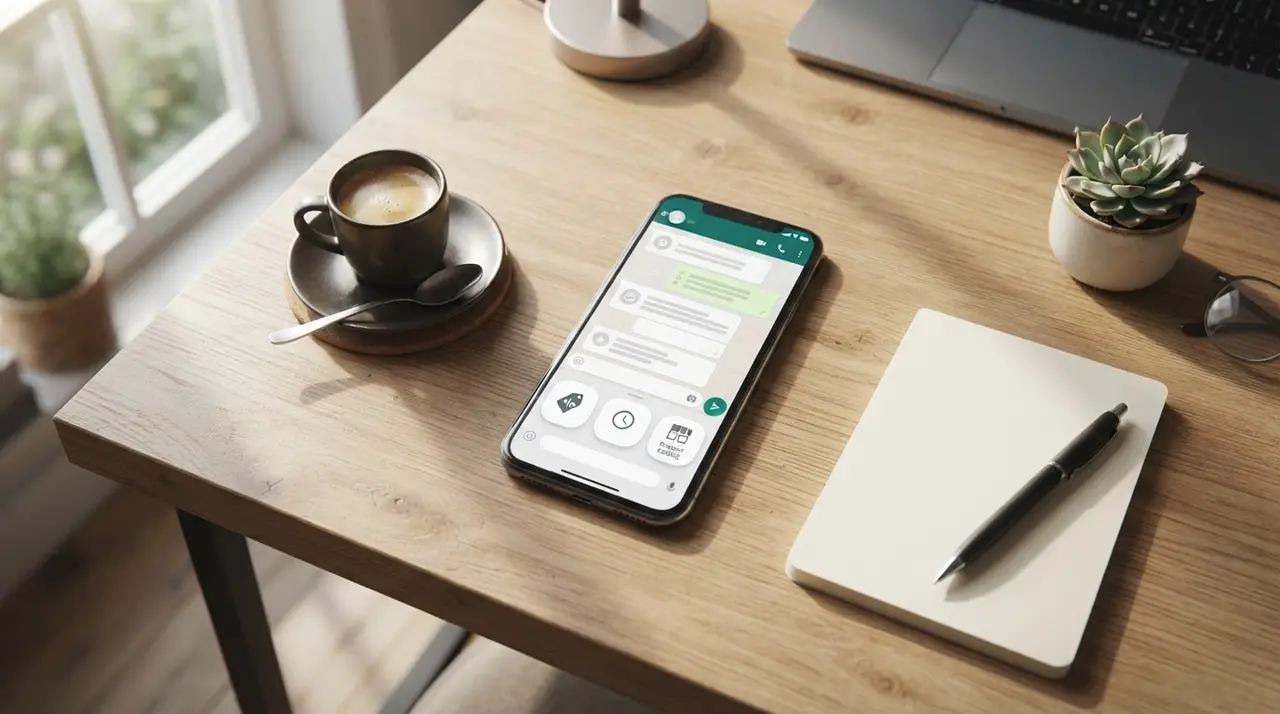
Quick replies in WhatsApp Business are pre-saved message templates that allow businesses to instantly answer common customer questions using keyboard shortcuts. Configuring these shortcuts speeds up response times, standardizes your brand's voice, and reduces repetitive typing for your sales and support teams.
If you manage customer service for a small or medium-sized enterprise, every second counts. Customers expect immediate answers regarding pricing, shipping, and availability. By setting up predefined answers, you can handle a higher volume of inquiries without sacrificing the quality of your customer interactions.
In this guide, we will explore the essential steps to optimize your messaging strategy. From understanding the core features of the platform to implementing advanced automation, you will learn exactly how to transform your daily communication workflow.
The Difference Between WhatsApp Business and Regular WhatsApp
The main difference between WhatsApp Business and the regular app is that the Business version includes professional tools like catalogs, automated away messages, and quick replies designed specifically for company-client interactions. While the standard app is built for personal communication, the business iteration operates as a lightweight CRM for SMEs.
Many business owners start by using their personal numbers to talk to clients. However, as message volume grows, mixing personal and professional chats leads to missed opportunities and disorganized communication. Upgrading to the business version is completely free and unlocks features that directly impact your conversion rates.
| Feature | Regular WhatsApp | WhatsApp Business |
|---|---|---|
| Target Audience | Individuals and personal use | Small to medium businesses |
| Business Profile | No (Basic name and status only) | Yes (Address, hours, website, email) |
| Product Catalog | No | Yes (Showcase products directly) |
| Quick Replies | No | Yes (Save and reuse messages) |
| Automated Messages | No | Yes (Greeting and away messages) |
| Labeling System | No | Yes (Organize chats by status) |
Understanding this distinction is the first step toward professionalizing your digital storefront. Once you make the switch, you can immediately begin optimizing your presence.
Setting Up Your WhatsApp Business Profile for Success
A complete WhatsApp Business profile builds instant trust by providing customers with your address, business hours, website, and contact details directly in the chat window. Before you even send a quick reply, your profile acts as your digital business card, setting the tone for the interaction.
To optimize your profile, follow these essential best practices:
- Use a professional logo: Ensure your profile picture is clear, recognizable, and properly centered.
- Write a clear description: Explain exactly what your business does in one or two short sentences.
- Update your business hours: Prevent customer frustration by clearly stating when they can expect a reply.
- Add your website and email: Provide alternative ways for leads to explore your brand or contact you for formal inquiries.
An optimized profile reduces the number of basic questions you receive. If your hours are clearly visible, you won't need to answer "Are you open today?" as frequently, allowing your team to focus on high-value sales conversations.
How to Create a WhatsApp Catalog to Boost Sales
Creating a WhatsApp catalog allows customers to browse your products and services directly within the app, streamlining the purchasing process without requiring an external website. This feature acts as a mini-ecommerce platform embedded right where your customers already spend their time.
To set up your catalog, simply navigate to the Business Tools menu and select Catalog. From there, you can add new items by uploading high-quality images, writing compelling product descriptions, and assigning prices. You can even include direct links to payment gateways or specific landing pages.
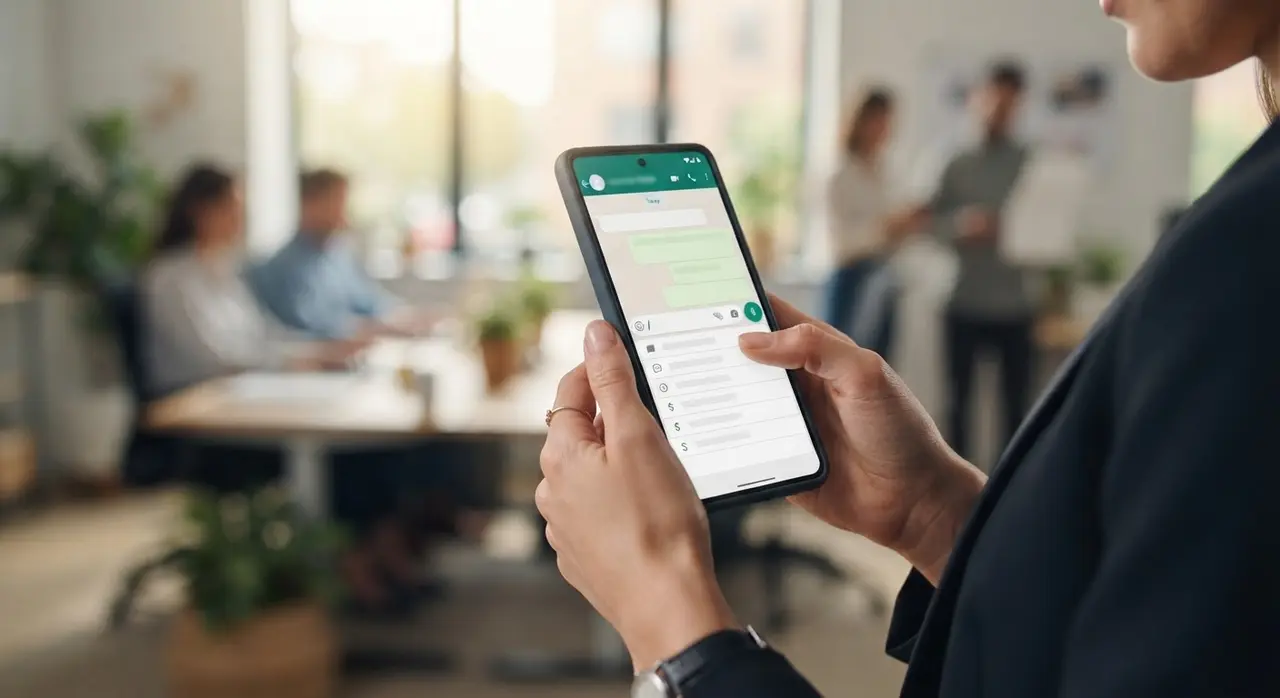
Once your catalog is active, you can share specific items directly in chats. This pairs perfectly with automated responses. For example, if a customer asks about your services, you can use a shortcut to send a greeting alongside a direct link to your catalog.
How to Configure Quick Replies in WhatsApp Business
Configuring quick replies in WhatsApp Business requires navigating to your business tools, selecting the quick replies option, and saving text or media alongside a designated keyboard shortcut. This simple setup is the cornerstone of efficient manual customer service.
Here is the step-by-step process to create your first shortcut:
- Open WhatsApp Business and tap the three dots (Android) or Settings (iOS).
- Select Business Tools, then tap on Quick Replies.
- Tap the Add (+) button to create a new template.
- Type out the full message you want to save. You can also attach images or videos.
- Create a shortcut keyword (e.g., "/thanks" or "/pricing").
- Save the entry.
To use the shortcut in a live conversation, simply type the forward slash symbol (/) in the text input field. A menu of all your saved responses will pop up. Select the one you need, tweak it if necessary to add a personal touch, and hit send. It is that easy.
Best Practices and Examples for Quick Replies
Effective quick replies should sound natural, address specific customer needs, and use placeholders to personalize the conversation before hitting send. The goal is to be fast without sounding like a rigid robot.
Consider setting up these essential shortcuts for your daily operations:
- /welcome: "Hi there! 👋 Welcome to [Your Company]. How can we help you today?"
- /pricing: "Our standard packages start at [Price]. You can view the full details in our catalog here: [Link]. Which option suits you best?"
- /shipping: "Great question! We ship orders within 24 hours. Standard delivery takes 3-5 business days. Can I help you track an existing order?"
- /goodbye: "Thank you for reaching out! Let us know if you need anything else. Have a great day! 😊"
Always encourage your team to read the pre-saved message before sending it. Adding the customer's name or adjusting a few words ensures the interaction remains warm and human, which is vital for closing deals and building loyalty.
Mini-Case Study: Scaling Customer Service with IAChatbot
Implementing advanced automation alongside standard business tools enables companies to handle high message volumes without sacrificing response quality. While native shortcuts are great for starting out, growing businesses often hit a bottleneck when message volume peaks.
A mid-sized aesthetics clinic struggled with answering repetitive pricing and scheduling questions. They relied heavily on manual shortcuts, but their receptionist still couldn't keep up during busy hours, leading to lost leads. By integrating IAChatbot, they transitioned from manual typing to an intelligent AI agent.
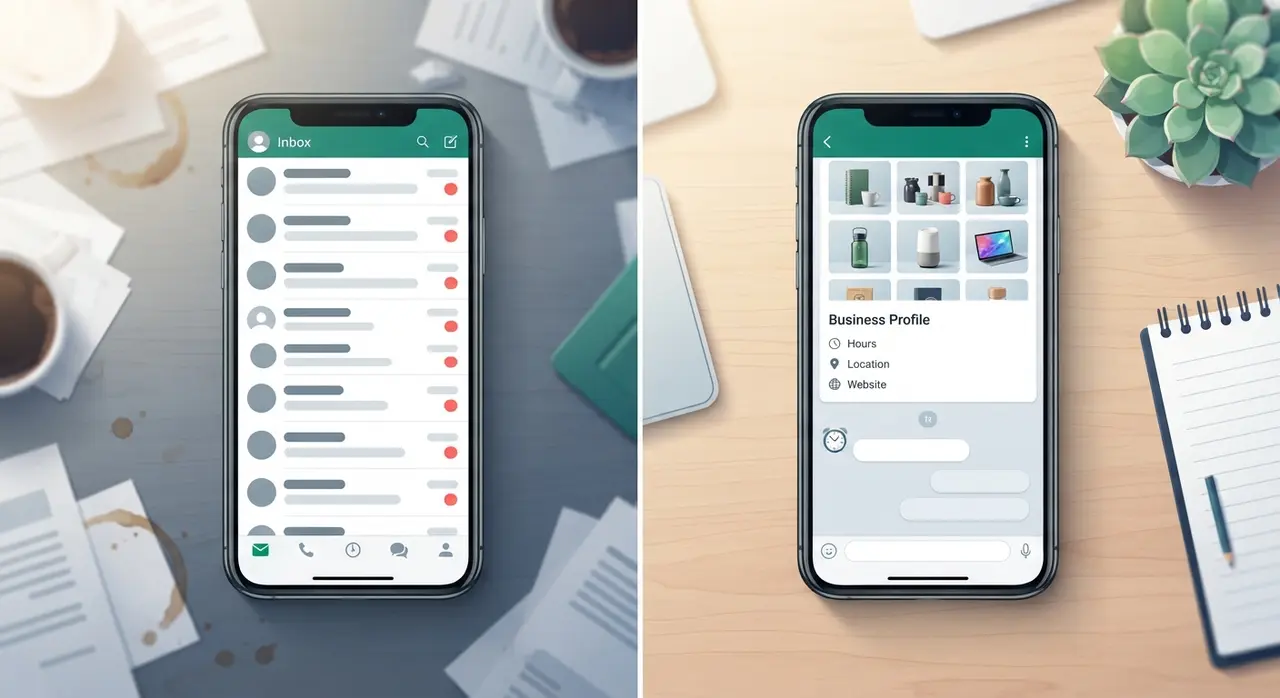
The AI seamlessly connected to their existing systems, handling FAQs, showcasing their services, and booking appointments 24/7. This shift eliminated wait times, allowed the staff to focus on in-person patient care, and increased their conversion rate by 40%. You can read more about building an AI automation stack for aesthetics clinics to see how this technology is reshaping the industry.
Moving Beyond Quick Replies: AI Automation
While manual shortcuts are helpful, upgrading to AI-driven chatbots completely automates your customer journey from initial contact to final sale. The native business app requires a human to press send; AI operates autonomously, qualifying leads while you sleep.
Modern AI agents can read a customer's intent, pull dynamic information from your database, and generate personalized responses instantly. They don't just send static templates; they hold dynamic conversations. By exploring comprehensive AI solutions, you can integrate your messaging platform with your CRM, inventory management, and calendar.
If your team spends more than two hours a day answering repetitive questions, it is time to look at use cases of AI in customer service. Transitioning from basic tools to intelligent automation is the ultimate competitive advantage for modern SMEs.
Frequently asked questions
What is the maximum number of quick replies I can save?
WhatsApp Business allows you to save up to 50 quick replies per account. This limit is usually more than enough for most small businesses to cover their most frequently asked questions, greetings, and closing statements.
Can I include images or videos in my quick replies?
Yes, you can attach media files such as images, videos, and documents to your saved templates. This is highly effective for sending size guides, product photos, or PDF brochures instantly during a chat.
Do quick replies work on WhatsApp Web?
Yes, quick replies function perfectly on WhatsApp Web and the desktop application. You simply type the forward slash (/) on your computer keyboard to bring up the menu of your saved templates.
How do I organize or edit my existing templates?
You can edit or delete existing templates by going back to the Quick Replies section under Business Tools. Tapping on any saved entry allows you to change the text, update the media, or modify the shortcut keyword.