
WhatsApp Business Tutorial: Organize Chats with Labels
Learn how to use labels in this complete WhatsApp Business tutorial. Organize your WhatsApp business profile, track statuses, and build a chat sales funnel.
- WhatsApp Business
- Sales Funnel
- Chat Organization
- CRM Migration
- Business Automation
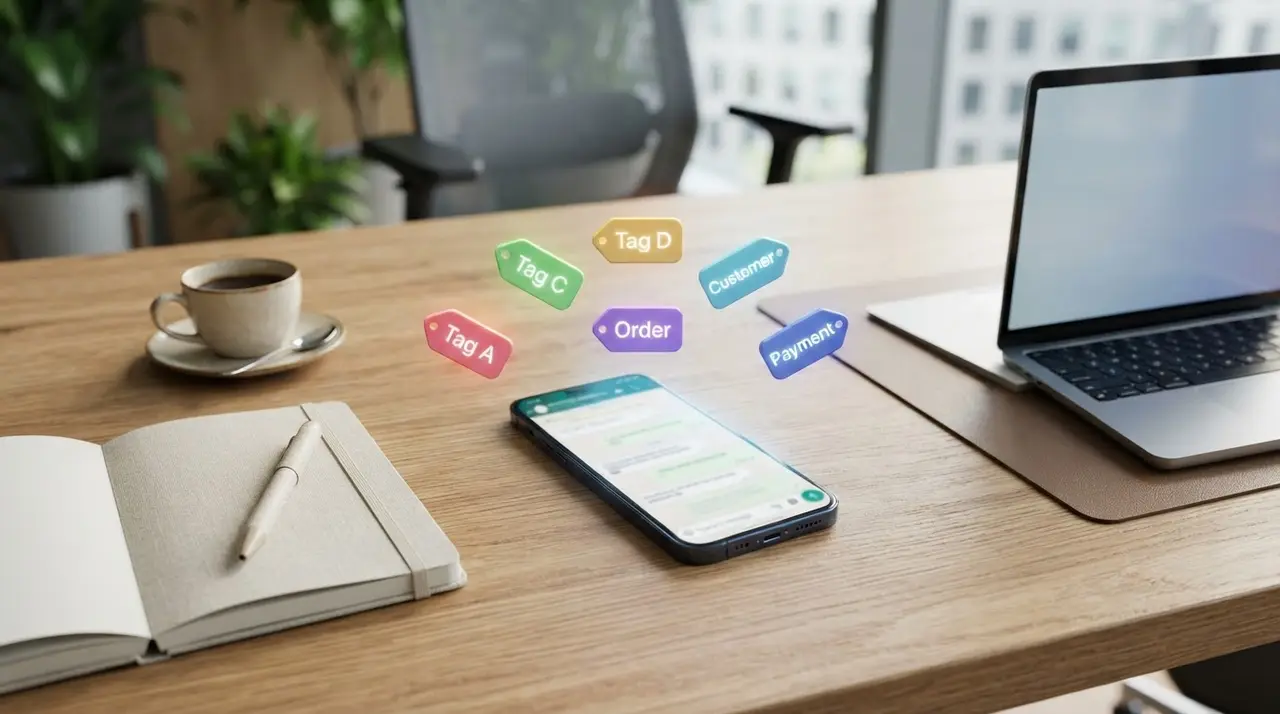
The Chaos of Unorganized Chats
If you use your phone for sales, you know the feeling. Messages pile up. You forget who asked for a quote and who is ready to buy.
Without a system, your WhatsApp business profile becomes a messy inbox instead of a revenue-generating machine. You end up losing money simply because you forgot to follow up.
In this comprehensive WhatsApp Business tutorial, we will show you exactly how to use labels to regain control. You will learn how to turn your chaotic chat list into a highly visual, predictable sales funnel.
What Are WhatsApp Business Labels?
Labels are a free, built-in feature designed to help small businesses categorize contacts and messages.
Think of them as digital, color-coded sticky notes. You can attach them to individual messages or entire chat threads to keep things visually organized.
By glancing at your chat screen, you instantly know the WhatsApp Business status of every conversation. Is it a new lead? A VIP customer? An unpaid invoice? You will know in one second.
Why You Must Use Them Today
- Faster response times: Prioritize urgent chats easily and ignore the noise.
- No lost sales: Never forget to follow up with a warm lead who needs a little push.
- Better customer experience: Treat VIPs with the speed they expect and deserve.
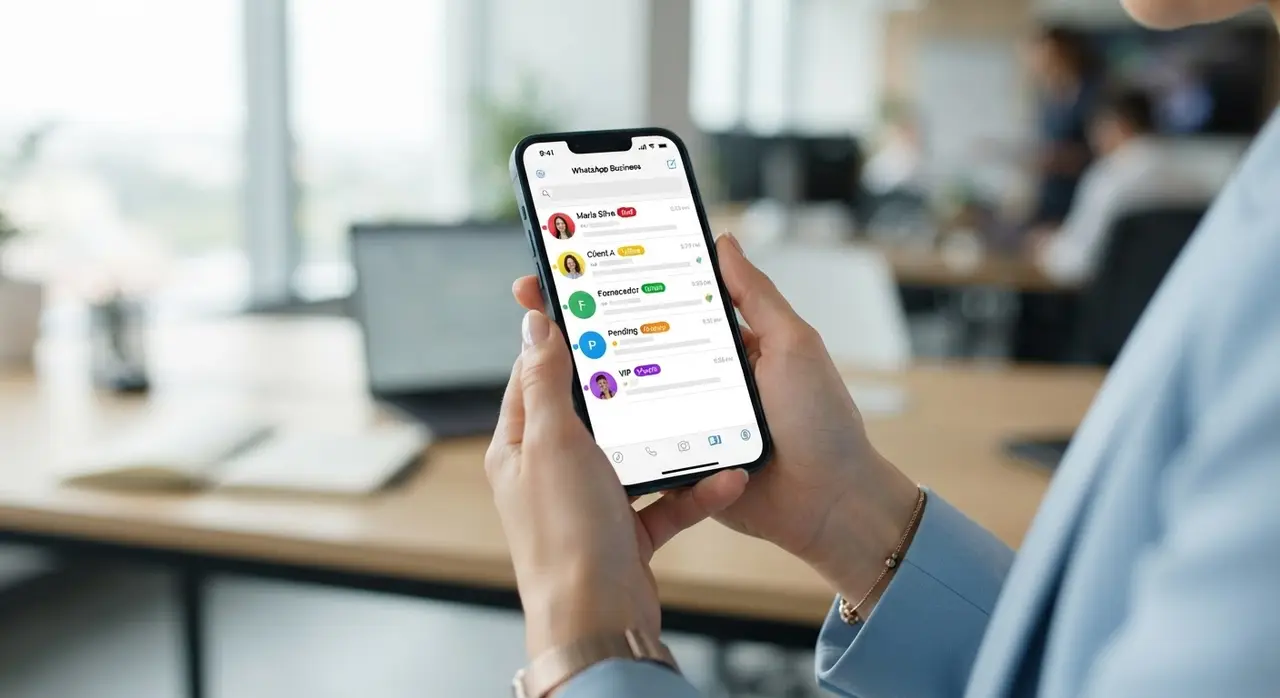
Building a Mini-Funnel with Labels
The biggest mistake business owners make is using labels randomly. To see real results, you need a strategy.
We recommend creating a "mini-funnel". This means your labels should represent the chronological steps a customer takes from saying "hello" to paying your invoice.
The 5 Essential Labels for Any Business
- New Lead (Blue): Someone who just messaged you for the first time. They need an immediate reply.
- In Discussion (Yellow): You are actively answering their questions or negotiating terms.
- Quote Sent (Orange): The proposal is in their hands. They need a follow-up in 24 hours.
- Awaiting Payment (Red): They agreed to buy, but the money hasn't arrived yet. Keep a close eye on this WhatsApp Business status.
- Customer (Green): The deal is closed. Time to deliver the product or service.
This simple color-coded system transforms your phone into a basic CRM. You can open your app and instantly see where your potential money is sitting.
Industry-Specific Label Examples
Let's look at how different businesses can adapt this framework. Customizing your labels makes your daily workflow much faster.
For Clinics and Healthcare
A busy clinic cannot afford to mix up appointments. Their labels might look like this: Scheduled, Confirmed, Canceled, and Post-Consultation.
If you want to automate this entirely, consider an AI Agent for Clinic Packages to handle bookings and renewals while you focus on patient care.
For E-commerce and Retail
Selling physical products requires strict order tracking. Use labels like: Payment Pending, Packing, Shipped, and Delivered.
How to Create and Apply Labels (Step-by-Step)
Setting this up takes less than five minutes. Here is your quick WhatsApp Business tutorial to get started right now.
Creating a New Label
- Open your WhatsApp Business app and tap the three dots (Menu) on Android or Settings on iOS.
- Select Labels.
- Tap the + icon (Add new label) at the bottom.
- Type the name of your label (e.g., "New Lead") and hit save.
Applying a Label to a Chat
- Go to your main chat list.
- Tap and hold a conversation you want to categorize.
- Tap the Label icon at the top of the screen.
- Select the appropriate color and hit save.
Now, a small colored tag will appear next to the contact's name. Your WhatsApp business profile is officially organized and ready for scale!
The Hidden Power: Broadcasting to Labels
Did you know you can send a mass message to everyone under a specific label? This is a game-changer for quick promotions.
For example, you can select your "Awaiting Payment" label and send a gentle reminder to all of them at once, saving you hours of typing.
Or, you can select your "Customer" label and send an exclusive discount code to generate repeat sales.
This is a fantastic way to drive satisfaction and referrals, much like having a dedicated AI Agent for Post-Sales working for you.
The Limitations of WhatsApp Labels
While labels are amazing for beginners, they are not a perfect solution for growing companies. You will eventually hit a ceiling.
It is crucial to recognize these limits before they start hurting your customer service quality and costing you sales.
1. The 20-Label Maximum
WhatsApp only allows you to create a maximum of 20 labels. If you have complex processes, multiple products, or different departments, you will run out of space fast.
2. Manual Labor
Labels do not apply themselves. Your team has to manually tag every single conversation. During a busy launch or a marketing campaign, human error is guaranteed.
3. No Multi-Agent Collaboration
If you have five salespeople sharing one number, labels get confusing. You cannot assign a chat to a specific employee easily without third-party software.

When Is It Time to Migrate to a CRM?
If you are answering more than 50 messages a day, manual labels are likely slowing you down. It is time to upgrade.
A CRM (Customer Relationship Management) system connects to the WhatsApp API. It replaces basic labels with automated pipelines, multi-agent access, and rich dashboards.
Signs You Need a CRM
- Your team forgets to reply to customers despite using labels.
- You need detailed reports on how many leads converted this month.
- You want to integrate your WhatsApp with your inventory, billing, or booking software.
Migrating to a professional tool ensures your business scales without losing the personal touch that made you successful in the first place.
Supercharge Your WhatsApp with AI Automation
A CRM is great, but combining it with Artificial Intelligence is where the real magic happens for modern businesses.
Imagine an AI that reads the customer's message, answers their questions, and automatically moves them to the "Qualified Lead" column in your CRM.
You no longer have to worry about tracking every single WhatsApp Business status. The AI does the heavy lifting 24/7, even while you sleep.
Check out our AI Solutions to see how we can transform your customer service from a manual chore into an automated profit center.
Conclusion
Organizing your WhatsApp business profile is the first essential step toward predictable sales. Labels offer a fantastic, free way to build a mini-funnel right on your phone.
Start by creating five basic stages: Lead, Negotiating, Quoted, Pending Payment, and Customer. Train yourself and your team to tag every conversation immediately.
But remember, as your business grows, your technology should grow with you. When labels become too manual and chaotic, AI and CRM integrations are your next logical step to scale revenue.
Frequently Asked Questions
Can I use more than 20 labels on WhatsApp Business?
No, the standard WhatsApp Business app strictly limits you to 20 labels. If you need more complex categorization or have multiple departments, you must migrate to the WhatsApp API and use a professional CRM system.
Do my customers see the labels I put on them?
Absolutely not. Labels are completely private and only visible to you and anyone who has access to your business phone. Your customers will never know how you categorized them.
How do I delete a label I no longer need?
Open your app, go to the Labels menu, tap and hold the label you want to remove, and select the trash can icon (Delete). This will delete the label, but it will not delete the chats associated with it.
Can I send a broadcast message to a specific label?
Yes! In the Labels menu, tap the label you want to target, tap the menu (three dots), and select "Message customers." This automatically creates a broadcast list with all the contacts that have that specific tag.