
WhatsApp Service Menu: How to Set Up & Automate
Learn how to build and automate a WhatsApp service menu. Discover UX best practices, routing strategies, and when to use n8n or Botpress for your business.
- WhatsApp Automation
- Customer Service
- Chatbot UX
- n8n Integration
- Botpress
- Business Growth
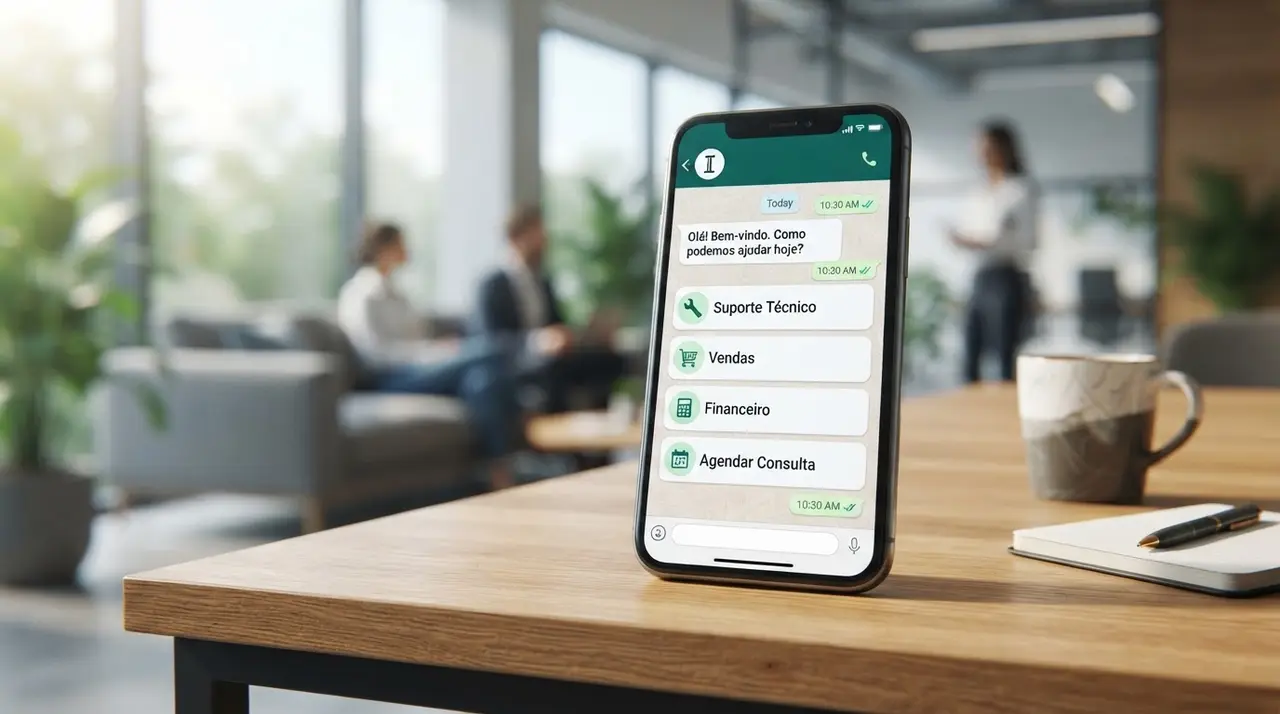
The Chaos of the Unmanaged WhatsApp Inbox
If your business relies on WhatsApp to talk to customers, you already know the daily struggle. Your team logs in every morning to dozens of "Hello," "How much is this?" and "I need help" messages. Without a proper structure, your human agents waste hours manually sorting through conversations just to figure out what each customer actually wants.
This lack of organization leads to slow response times, frustrated clients, and lost sales. In today's fast-paced digital market, making a customer wait 40 minutes for a simple pricing PDF is unacceptable. This is exactly why so many business owners search for como automatizar whatsapp (how to automate WhatsApp) to regain control of their operations.
The most effective first line of defense is a WhatsApp customer service menu. By forcing incoming traffic through a structured set of options, you instantly categorize requests, collect necessary data upfront, and route the customer to the right department—or resolve their issue automatically.
What Exactly is a WhatsApp Service Menu?
A WhatsApp service menu is an automated greeting that presents the user with a list of options as soon as they send their first message. Instead of waiting for a human to ask "How can I help you?", the system immediately takes charge of the conversation.
Historically, businesses used plain text menus where users had to reply with a number (e.g., "Reply 1 for Sales, 2 for Support"). While still functional, the WhatsApp Business API now supports interactive messages. These include clickable buttons (up to 3 options) and list messages (a dropdown menu with up to 10 options).
Interactive buttons drastically reduce user error. Customers simply tap their choice, and the automation instantly triggers the next step. This friction-free experience is a core component of modern conversational UX.

Why Your Business Must Automate Routing
Building a menu isn't just about looking professional; it is a vital operational strategy. When you implement a structured menu, you unlock several immediate advantages for your team.
- Instant Triage: You separate hot sales leads from existing customers needing technical support.
- Data Collection: Before a human agent ever says hello, the bot can ask for an order number, email, or account ID.
- Self-Service Resolution: Routine queries like business hours, location, or basic pricing can be answered instantly without human intervention.
- Scalability: Your system can handle 10 or 10,000 simultaneous messages without breaking a sweat.
By filtering out the noise, your human agents only step in when high-level empathy or complex problem-solving is required. If you want to dive deeper into how this impacts your bottom line, explore the benefits of using AI in customer service.
Menu vs. AI: Which One Wins?
A common dilemma for decision-makers is choosing between a rigid, button-based menu and a free-flowing Artificial Intelligence (AI) agent. The truth is, it's not a competition. The best systems use both, depending on the context.
A rule-based menu is perfect for the initial greeting. It sets clear boundaries and guides the user down a predictable path. If you run a clinic, for example, a user tapping "Schedule Appointment" is much more efficient than having them type out a long explanation of their symptoms right away.
On the other hand, AI shines in open-ended conversations. If a user selects "Product Questions" from your menu, an AI agent can then step in to read their natural language queries, understand context, and provide specific answers based on your knowledge base.
Comparison: Menu vs. AI Agent
| Feature | Structured Menu | Generative AI Agent |
|---|---|---|
| Best For | Initial routing, clear choices, rigid processes. | Answering complex questions, natural conversation. |
| User Effort | Very low (just tap a button). | Medium (requires typing out a query). |
| Predictability | 100% predictable. | Highly dynamic, sometimes unpredictable. |
| Setup Complexity | Low to Medium. | Medium to High (requires prompt engineering). |
By blending a structured menu with AI, you get the best of both worlds. The menu acts as the traffic cop, and the AI acts as the specialist. You can see this hybrid approach in action by exploring various use cases in customer service and sales.
How to Set Up Your WhatsApp Menu: Step-by-Step
Creating a high-converting WhatsApp menu requires more than just listing your departments. It demands a strategic approach to customer journey mapping. Here is the exact framework we use to build efficient automations.
Step 1: Map the Top 5 Inquiries
Don't guess what your customers want. Look at your last 100 WhatsApp conversations and categorize them. You will likely find that 80% of incoming messages fall into 3 to 5 repetitive categories. These categories will become your main menu buttons.
For a standard service business, the options usually look like this: 1) Sales & Quotes, 2) Support & Status, 3) Finance & Billing, 4) Talk to a Human. Keep it simple and focused.
Step 2: Choose Your Automation Stack
To build interactive menus, you need a software layer connected to the WhatsApp Business API. Two of the most powerful approaches involve visual bot builders and backend workflow automation.
Using Botpress WhatsApp integrations is fantastic for creating the conversational flow. Botpress provides a visual canvas where you can drag and drop "Nodes" to build the exact sequence of messages, buttons, and AI-driven responses.
For the heavy lifting behind the scenes, n8n automação whatsapp setups are unmatched. n8n is an open-source workflow automation tool. When a user clicks "Check Order Status" on your menu, n8n can silently trigger a webhook, search your ERP or CRM, pull the delivery data, and feed it back to WhatsApp in seconds.

Step 3: Draft the Conversational UX
The words you use in your menu dictate its success. A robotic, overly formal menu will frustrate users. Write your menu copy to be warm, direct, and helpful.
Instead of: "Welcome to Company X. Please select an option from the numerical list below to proceed with your service request."
Try: "Hi there! 👋 Welcome to Company X. How can we help you today? Please tap a button below to get started."
Step 4: Set Up Routing and Escalation
The final step is ensuring the customer reaches the right destination. If they select "Sales", the automation should tag the chat and assign it to the sales inbox. If they select "Support", it goes to the support team.
Crucially, always configure an "escalation protocol". If the user is stuck, frustrated, or explicitly asks for a human, the bot must seamlessly pause the automation and notify an agent. Nothing ruins the customer experience faster than a bot that traps the user in an endless loop.
5 Golden Rules of Conversational UX
Designing a chatbot is fundamentally different from designing a website. In a chat interface, space is limited, and attention spans are incredibly short. Follow these five golden rules to ensure high conversion rates.
- Rule 1: Limit Your Options. Never offer more than 5 choices in a single menu. If you have 10 departments, group them into broader categories (e.g., "Sales", "Support", "Other") and use sub-menus.
- Rule 2: Provide an Escape Hatch. Always include a "Talk to an Agent" button or recognize phrases like "human" and "agent". Trapping users causes massive brand damage.
- Rule 3: Keep Copy Punchy. WhatsApp is a mobile-first platform. Keep your greetings under 3 sentences. Get straight to the point.
- Rule 4: Handle Errors Gracefully. If a user types "I want to buy" instead of clicking the "Sales" button, your bot should use basic intent recognition to route them correctly, rather than sending an annoying "Invalid option" error.
- Rule 5: Set Expectations. If the automation transfers the chat to a human, tell the user the expected wait time. "I'm transferring you to our sales team. You are 2nd in line, and we usually reply in 5 minutes."
Mini-Case Study: Scaling Support in a Busy Clinic
To understand the power of a structured menu paired with AI, let's look at a practical scenario. A mid-sized aesthetics clinic was struggling to handle over 300 WhatsApp messages a day. Their receptionists were spending 60% of their time answering "Do you accept my insurance?" or "What are your hours?"
By implementing a straightforward WhatsApp menu, they categorized traffic immediately. The menu offered three buttons: Schedule Appointment, Prices & Packages, and Current Patients.
When users clicked "Prices & Packages", an AI agent took over, answering specific questions about laser treatments and botox. When they clicked "Schedule Appointment", an n8n workflow checked the clinic's Google Calendar and offered available slots directly in the chat. This is a classic example of clinic automation for recurring sales. The result? A 40% reduction in manual workload and a 25% increase in booked consultations within the first month.
The Future of WhatsApp Business Automations
The days of manually reading every single incoming "Hi" on WhatsApp are over. As customer expectations rise, businesses that fail to provide instant, structured, and helpful automated responses will lose market share to competitors who do.
Whether you choose to build a simple interactive button menu or a complex ecosystem using advanced workflow tools, the goal remains the same: remove friction for the customer and remove repetitive tasks for your team. Start small, map your most common requests, and build your menu. Once the structure is in place, you can gradually layer in Artificial Intelligence to handle the more complex conversations.
Frequently Asked Questions
Can I use interactive buttons on the regular WhatsApp app?
No. Interactive buttons and list messages are exclusive features of the WhatsApp Business API. The standard WhatsApp Messenger and the free WhatsApp Business app only support plain text and basic quick replies. To build advanced menus, you must connect to the API through an official provider.
Do I need to know how to code to automate my WhatsApp?
Not necessarily. While tools like n8n can get technical when integrating complex databases, many visual builders like Botpress allow you to create sophisticated chatbot flows and menus using a drag-and-drop interface without writing a single line of code.
What happens if a customer refuses to use the menu?
This is where AI and intent recognition come in. If a user ignores the buttons and types "I need to speak to someone about a broken product", a well-configured bot will read the keyword "broken product", bypass the menu, and automatically route the user to the technical support queue.
How much does it cost to implement a WhatsApp menu?
The cost varies depending on your tech stack. You will pay Meta's standard conversation fees for the API, plus the subscription cost of your chosen automation platform (like Botpress, ManyChat, or a custom n8n server). Working with an automation agency ensures the system is built correctly the first time, providing a rapid return on investment through saved labor hours.